Diagram viewer
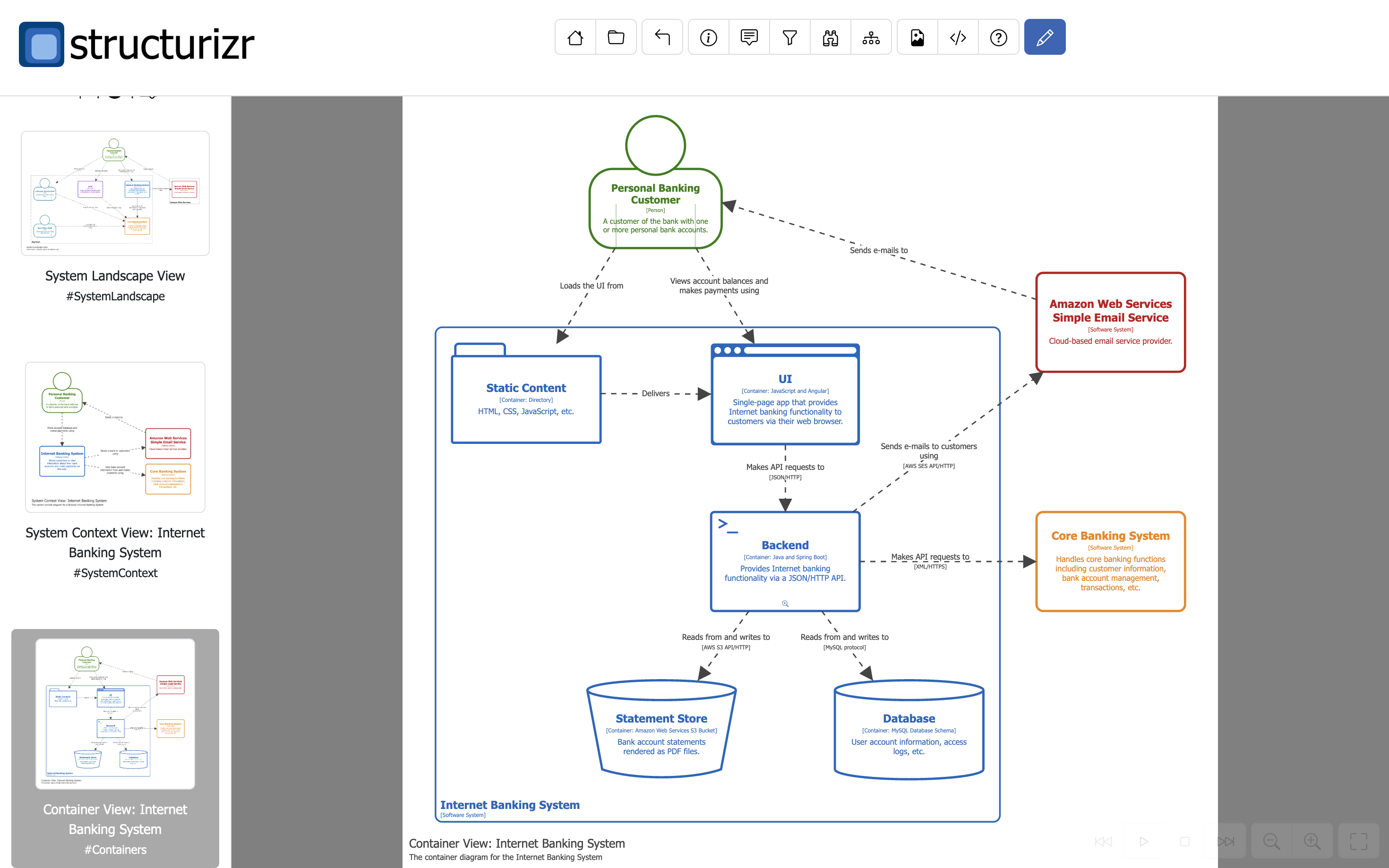
Toolbar buttons
 Home.
Home. Workspace summary.
 Diagram navigator.
 Diagram key.
 Toggle tooltips on/off.
 Filter by user-defined tags.
 Filter by perspective.
 Open graph exploration.
 Export diagrams to PNG/SVG.
 Edit diagram (workspace write access required).
Floating buttons (bottom right)
 Step backward.
 Start animation.
 Stop animation.
 Step forward.
 Zoom out.
 Zoom in.
 Enter fullscreen mode.
Keyboard shortcuts
+Zoom in.-Zoom out.wZoom to fit width.hZoom to fit height.cZoom to fit content.nToggle diagram navigation on/off.fEnter fullscreen mode.iShow diagram key/legend.pFilter by perspective.gFilter by user-defined tags.dToggle element/relationship descriptions on/off.mToggle element/relationship metadata on/off.-
tToggle the tooltip on/off (hold theAltkey while the tooltip is displayed to enable sticky tooltips). Up arrowNavigate to the previous diagram.Down arrowNavigate to the next diagram.Left arrowNavigate to the next diagram.Right arrowNavigate to the previous diagram.bGo back to the last viewed diagram.Spaceopen quick navigation.l: Open the diagram navigator.
Animation (static diagrams with animations, and dynamic diagrams):
.Step forward.,Step backward.
Diagram level indicator
The thumbnails in the navigation include a diagram level indicator as follows:
- System landscape diagrams, system context diagrams, unscoped dynamic diagrams, deployment diagrams without containers, unscoped image views.
- Container diagrams, software system scoped dynamic diagrams, deployment diagrams with containers, software system scoped image views.
- Component diagrams, container scoped dynamic diagrams, container scoped image views.
- Component scoped image views.
Diagram navigator
The diagram navigator provides a way to see which diagrams in the workspace sit “above”, “next to”, and “below” the current diagram.
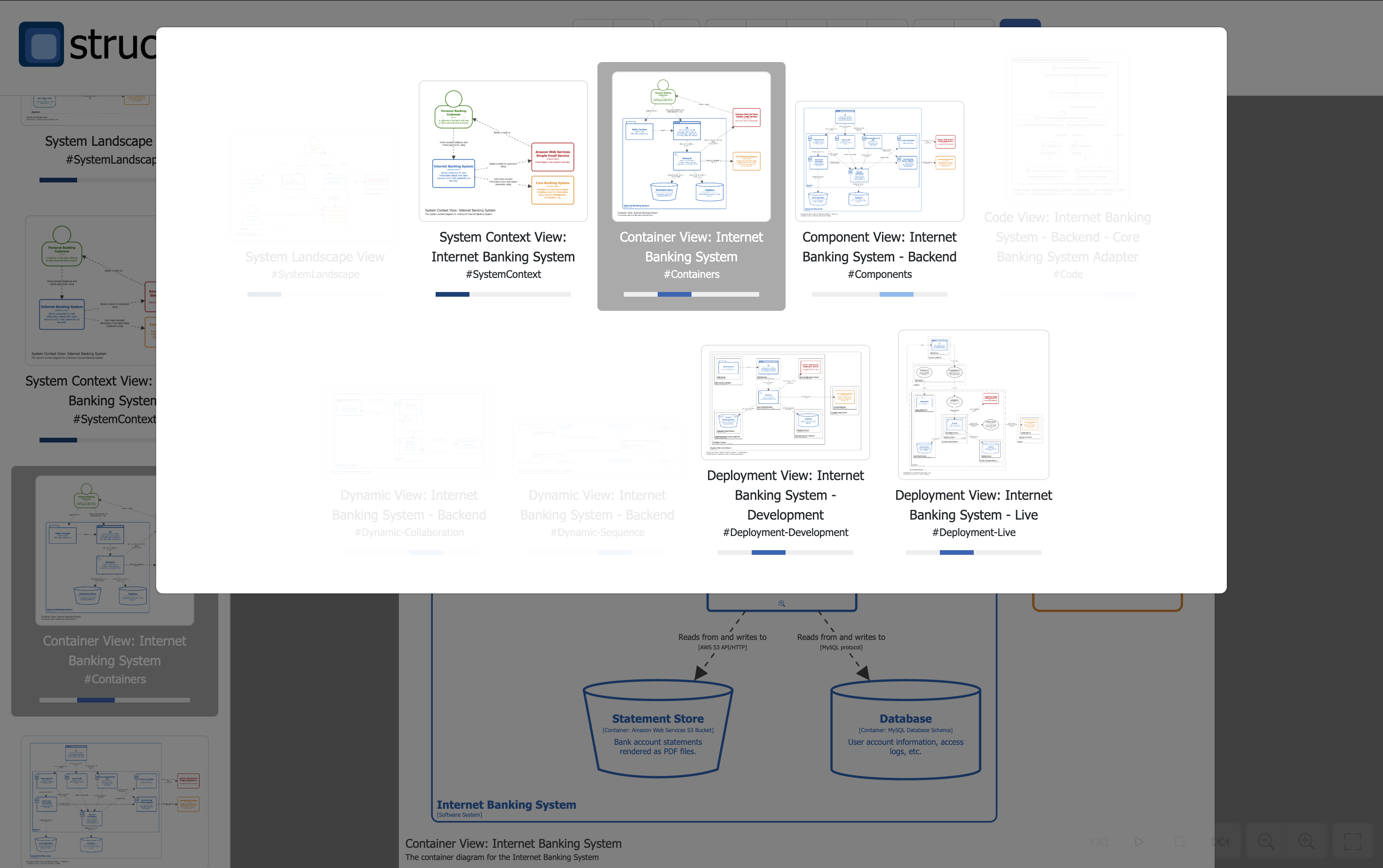
Diagram order
By default, the diagrams in the navigation panel are first sorted by scope (unscoped, followed by software systems by name), and then by diagram type, as follows:
- Unscoped diagrams
- System landscape diagrams
- Dynamic diagrams
- Deployment diagrams
- Software system 1
- System context diagrams
- Container context diagrams
- Component context diagrams
- Dynamic diagrams
- Deployment diagrams
- Software system 2
- System context diagrams
- Container context diagrams
- Component context diagrams
- Dynamic diagrams
- Deployment diagrams
- etc
A viewset property named structurizr.sort can be used to change the sort order:
key: sort by view keytype: sort by view type (e.g. keep all system context views together)created: sort by creation order (e.g. the order in which views are defined in your DSL)
For example, with the DSL:
workspace {

    model {
        ...
    }

    views {
        properties {
            "structurizr.sort" "created"
        }
    }

}
Navigation
Double-clicking elements
You can double-click diagram elements to “zoom-in” and navigate to:
- Open the diagram at the next level of detail (e.g. system context diagram to container diagram).
- Open documentation associated with the element.
- Open decisions associated with the element.
- Open the URL that is configured by the element’s
urlproperty. - Open any URLs that are configured by the element’s
properties(name=label; value=url).
When an element has a mix of “zoom-ins”, documentation, decsions, and URLs, double-clicking the element will open a modal from which you can choose where to go next.
Zoom-in
Elements with a zoom-in are marked with a symbol.
- Software System: Double-clicking a software system will either take you to the System Context or Container diagram for that software system, if one exists.
- Container: Double-clicking a container will take you to the first Component diagram for that container, if one exists.
Documentation
Elements with documentation are marked with a  symbol.
Decisions
Elements with decisions are marked with a  symbol.
URLs
Elements with an associated URL are marked with a  symbol. Double-clicking with the
 Alt key pressed will open the URL. URLs must be valid HTTP/HTTPS URLs (e.g. https://structurizr.com), or they can refer to diagrams, documentation, and decisions in the same workspace with a syntax of {workspace}/diagrams, {workspace}/documentation, and {workspace}/decisions respectively.
For example, a URL of {workspace}/diagrams#key will be rewritten to something like /workspace/123/diagrams#key, based upon where the workspace is hosted (local or server) and whether the workspace has a public or sharing link enabled. A specific workspace ID can also be provided to link to a different workspace, for example: {workspace:456}/diagrams.
Double-clicking relationships
You can double-click relationships (hold the Alt key while in the diagram editor) to open the resource that is configured by the relationship’s url property. This is indicated by a symbol.