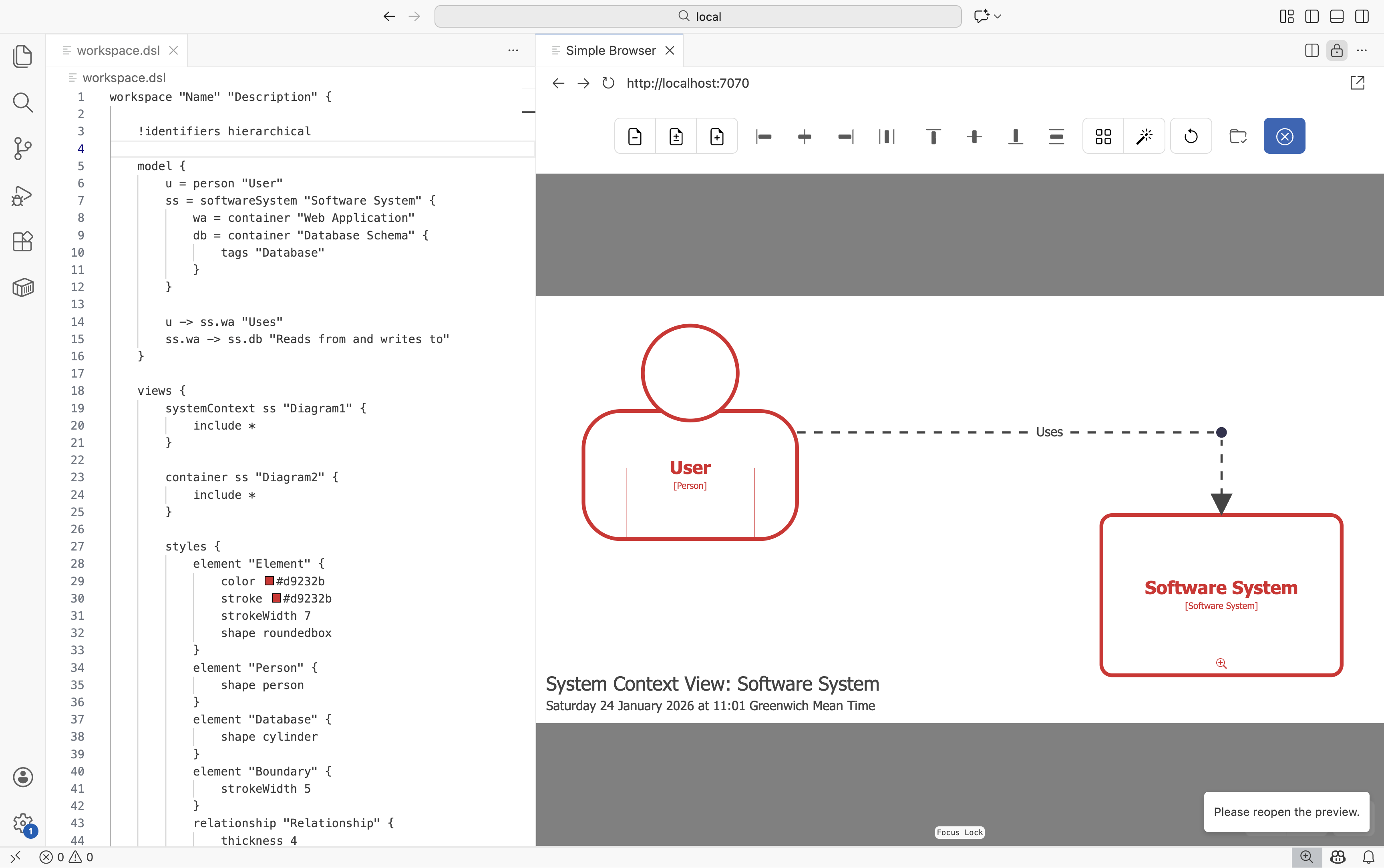
Workflow
- Create your workspace using the DSL, as a file named
workspace.dslin your Structurizr data directory. Any included files (documentation, ADRs, icons, etc) should also be accessible from this directory. - Start Structurizr
local. - Open your web browser and navigate to http://localhost:8080 to see your workspace content.
- Modify the diagram layout as needed, and save your workspace via the UI. Structurizr will write a JSON version of your workspace into your Structurizr data directory to a file named
workspace.json- this includes your workspace and the layout information for your diagrams. - Make any changes as required to the content of your
workspace.dslfile, and save it. - Refresh your web browser to see the changes.
For a faster feedback loop you can use the auto-refresh configuration in conjunction with a web browser running split-screen. VS Code’s Simple Browser is sufficient for this purpose.