Diagram editor
The layout of a diagram can be modified using the browser-based diagram editor, by clicking the  button when viewing a diagram, or using the embedded diagram editor when using the browser-based DSL editor. Please note:
- The diagram editor only provides a way to modify the diagram layout, not the content itself.
- You will need to have write access to the workspace to edit the diagram layout.
- You will not be able to modify the diagram layout if automatic layout is enabled.
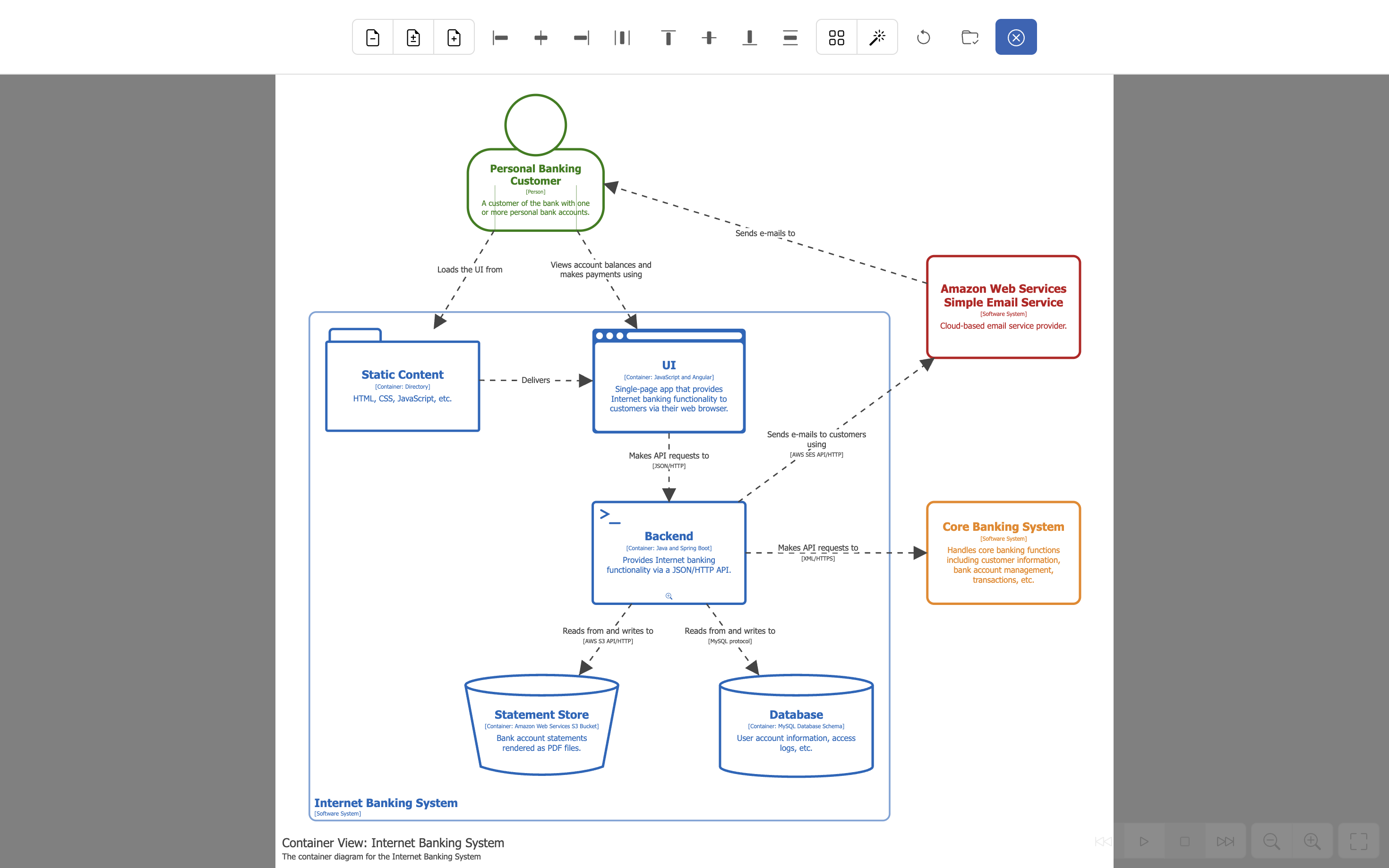
Diagram layout
Manual layout is the default when automatic layout is not configured for a view (e.g. via the DSL autolayout keyword). Structurizr will apply automatic layout if a view does not have any layout information associated with it. After this, the diagram layout can be modified by dragging the elements around the diagram canvas in the diagram editor, and the layout saved using the  button.
Clicking the  button will open the auto-layout modal, allowing you to manually apply the automatic layout algorithm.
The Dagre library is used for automatic layout. It generally does a good job, but isn’t perfect and may fail on diagrams that include lots of nested elements.
Canvas size
You can use the following buttons to change the diagram canvas size.
 Decrease canvas size.
 Auto canvas size.
 Increase canvas size.
By default, the diagram will stay centred when using the decrease and increase canvas size buttons. To disable this, hold the Alt key while clicking the button.
Elements
There are a number of toolbar buttons that become enabled when you multi-select elements, which you can do by holding the Alt or Shift key while clicking an element, or by using the lasso tool. The following buttons allow you to align all selected elements with reference to the first element that was selected.
 Align selected elements left.
 Align selected elements centre.
 Align selected elements right.
 Align selected elements top.
- Align selected elements middle.
 Align selected elements bottom.
You can also horizontally and vertically centre the selected elements on the diagram canvas.
 Centre diagram or selected elements.
Finally, selected elements can be evenly distributed using the following buttons.
 Distribute selected elements horizontally.
 Distribute selected elements vertically.
To bring all elements back on to the diagram canvas, open the automatic layout modal and click the  button.
The following keyboard shortcuts for the element alignment and distribution tools are available when two or more elements are selected:
l: Align selected elements left.c: Align selected elements centre.r: Align selected elements right.h: Distribute selected elements horizontally.t: Align selected elements top.m: Align selected elements middle.b: Align selected elements bottom.v: Distribute selected elements vertically.
Relationships
By default, all links between elements are straight lines. You can add vertices onto a link by clicking the mouse on the link. The vertex can be moved by dragging the coloured circle, and removed by double-clicking the vertex.
Moving the mouse cursor over a link will highlight that link. While highlighted:
UpandDownarrows can be used to move the positioning of the label.rwill toggle the routing algorithm between direct, orthogonal, and curved.jwill toggle line jumps.
To remove all vertices from all relationships, open the automatic layout modal and click the  button.